
Getting Started: Access, Install, and First Sign-In
Welcome to Aesthetics360.
This guide provides detailed instructions for accessing the platform, installing the mobile application, and completing your initial sign-in on both web and mobile devices.
In this article:
- Access and Setup Aesthetics360 Mobile App
- Where to Download the Aesthetics360 Mobile App
- How to Update Aesthetics360 to the newest version
- How to Setup A360 Account on Mobile App
- Invitation Link Issues – Account Setup
- How to Sign In to the Aesthetics360 Mobile Application
- Can't Sign In After Setting Up Your Password
- How to Enable FaceID/TouchID for Quicker Sign In to Mobile App
- Access and Configure the Aesthetics360 Web Platform
Access and Configure the Aesthetics360 Mobile Application
Where to Download the Aesthetics360 Mobile App?
Option 1
- Open the App Store on your iOS device (iPhone or iPad).https://apps.apple.com/ua/app/aesthetics360/id6744249476
- Search for “Aesthetics360”.
- Find the app named Aesthetics360 and tap Get to download and install it on your device.
- Once installed, open the app to begin your setup.

Option 2
Access this link using your iOS device. It will redirect you to the mobile app page on the App Store. https://apps.apple.com/ua/app/aesthetics360/id6744249476
How to Update Aesthetics360 to the newest version?
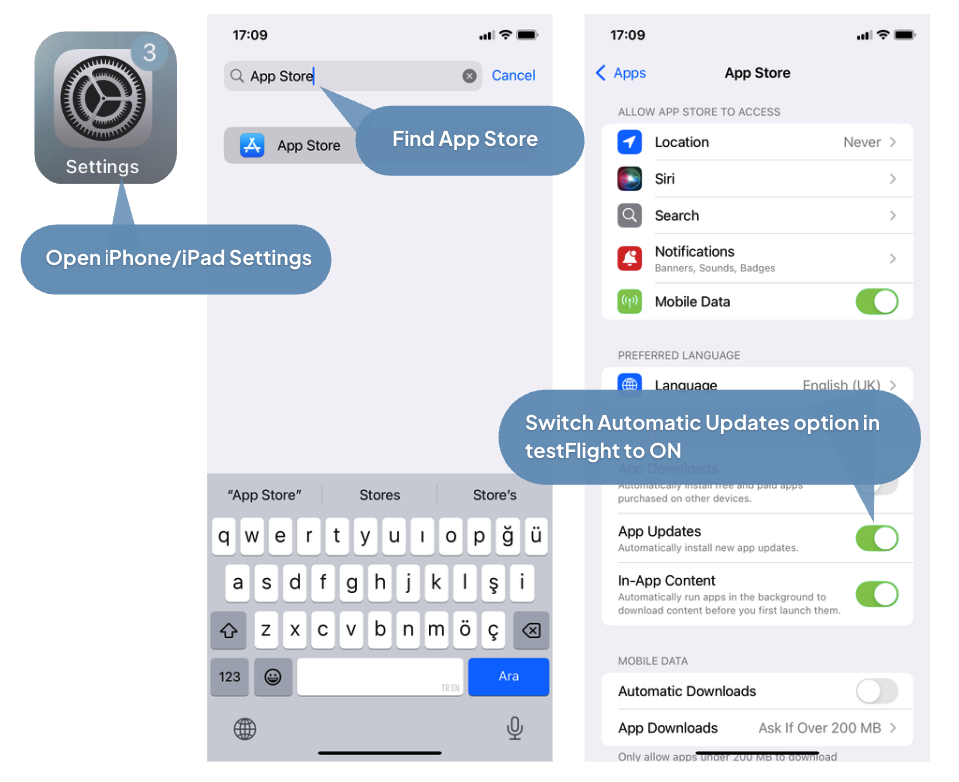
- To ensure you are using the latest version of the Aesthetics360 mobile app, we recommend enabling automatic updates in the App Store. This will allow you to receive the newest features and improvements promptly.
Unfortunately, Apple does not allow per-app automatic update toggles natively. The App Store setting is all-or-nothing — you either enable auto-updates for all apps or none.
Option 1: Enable Auto-Updates
This will automatically update all apps including Aesthetics360. |
|
Option 2: Manually Update Only the Aesthetics360 App
If you prefer not to auto-update all apps:
- Open the App Store.
- Tap the My Account button or your photo at the top of the screen.
- Scroll down to see pending updates and release notes.
- Tap Update next to the Aesthetics360 app to only update that app, or tap Update All.
How to Setup A360 Account on Mobile App?
|
|
|
|
To display the entered password, click the 'eye' icon.
|
|
|
|


Invitation Link Issues – Account Setup

If you're having trouble with your invitation link, here's what to do:
What if the link isn't opening or the page won't load?
- Check your internet connection and try clicking the link again.
- Try opening the link in a different browser (Chrome, Safari, Edge).
- Make sure the full link was copied — some email apps can split long links across two lines, which breaks them.
What if the link has expired or already been used?
Invitation links are single-use and time-limited, so a link will stop working if:
- It was already used to complete your account setup.
- Too much time has passed since the email was sent.
What to do:
- If you're sure you've never used the link before, it may have expired — contact your Practice Admin and ask them to resend the invitation email.
- If you're not sure whether you already completed setup, try logging in first at app.aesthetics360.com before asking for a new link.
Who can resend the invitation?
Only your Practice Admin can resend an invitation — you can't request a new one directly through the app. Reach out to them through your usual internal channels and ask them to send a fresh invite.
How to Sign In to the Aesthetics360 Mobile Application?
- When you first open the Aesthetics 360 app, enter the email and password you created during account setup.
- The app will verify the accuracy of your email and password before granting access.
- Upon successful verification, you will be directed to the Patients List within the mobile application.

The application automatically stores the email address used for signing in. Therefore, the next time you access the mobile application on this device, you only need to enter your password
Can't Sign In After Setting Up Your Password
| If you've set up your password but can't sign in, here's what to check: |
|

Is everything entered correctly?
|
|

What if it still doesn't work?
Try resetting your password:
- On the login screen, tap Forgot Password.
- Follow the instructions sent to your email to create a new password.

What if you need more help?
You have a few options:
|
|
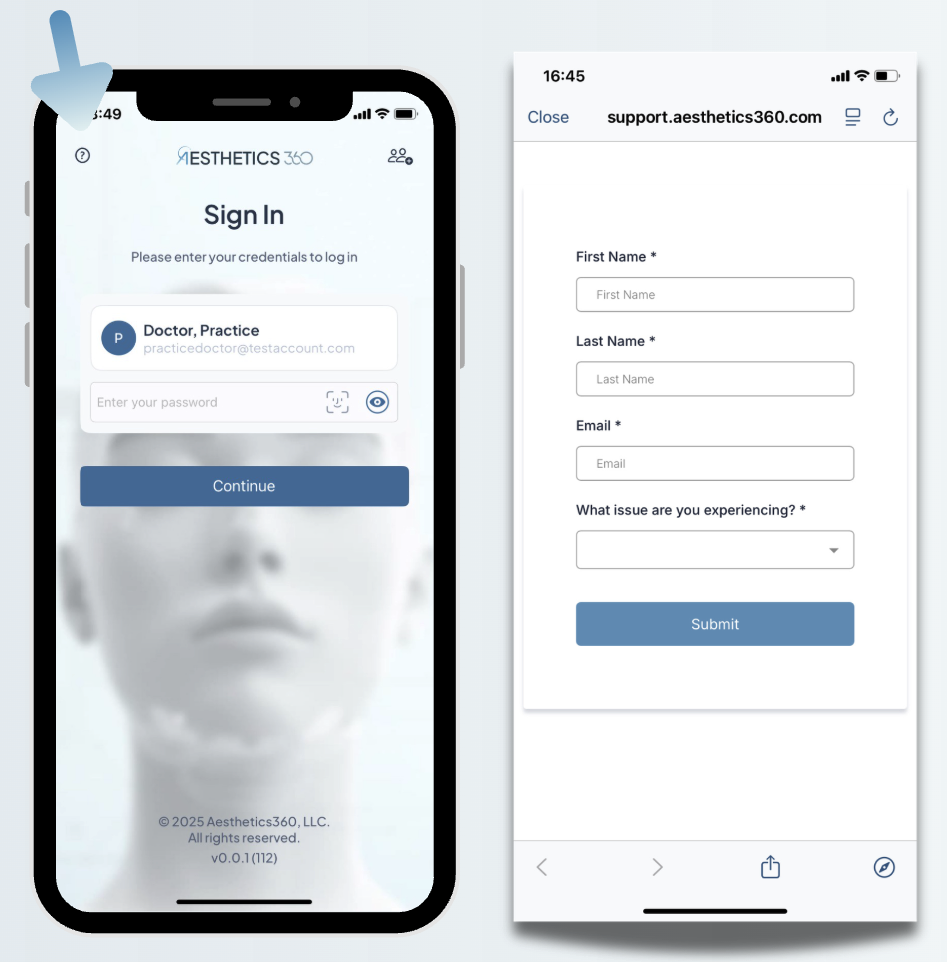
- Contact your Practice Admin and ask them to assist you with access.
- Send an email directly to the Aesthetics360 team at support@aesthetics360.com
How to Enable FaceID/TouchID for Quicker Sign In to Mobile App?
- Once logged in, we recommend to enable FaceID/Touch ID for quicker access.
|
|
|
|


Access and Configure the Aesthetics360 Web Platform
How to Access Aesthetics360 Web Platform?
- To use A360 on your desktop or laptop, open a web browser and go to: app.aesthetics360.com
- Log in with your credentials (they must be pre-setup beforehand).

How to Setup A360 Account on Web Platform?
|
|
|
|
To display the entered password, click the 'eye' icon.
|
|
|
|


Invitation Link Issues – Account Setup
If you're having trouble with your invitation link, here's what to do:
What if the link isn't opening or the page won't load?
- Check your internet connection and try clicking the link again.
- Try opening the link in a different browser (Chrome, Safari, Edge).
- Make sure the full link was copied — some email apps can split long links across two lines, which breaks them.
What if the link has expired or already been used?
Invitation links are single-use and time-limited, so a link will stop working if:
- It was already used to complete your account setup.
- Too much time has passed since the email was sent.
What to do:
- If you're sure you've never used the link before, it may have expired — contact your Practice Admin and ask them to resend the invitation email.
- If you're not sure whether you already completed setup, try logging in first at app.aesthetics360.com before asking for a new link.
Who can resend the invitation?
Only your Practice Admin can resend an invitation — you can't request a new one directly through the app. Reach out to them through your usual internal channels and ask them to send a fresh invite.
How to Sign In to the Aesthetics360 Web Platform?
- When you first open the Aesthetics 360 app, enter the email and password you created during account setup.

- Check 'Remember Me' option for faster login next time.

- The app will verify the accuracy of your email and password before granting access.
- Upon successful verification, you will be directed to the Patients List within the web platform.
The application automatically stores the email address used for signing in. Therefore, the next time you access the mobile application on this device, you only need to enter your password
Can't Sign In After Setting Up Your Password
| If you've set up your password but can't sign in, here's what to check: |
|

Is everything entered correctly?
- Double-check your email address for any typos — a single wrong character will prevent you from signing in.
- Use the eye icon in the password field to reveal your password and make sure it's entered exactly as you set it up, including any uppercase letters, numbers, or special characters.

What if it still doesn't work?
Try resetting your password:
- On the login screen, tap Forgot Password.
- Follow the instructions sent to your email to create a new password.

What if you need more help?
You have a few options:
- Try to login via Aesthetics360 Mobile Application (see How to Sign In to the Aesthetics360 Mobile Application
- Contact your Practice Admin and ask them to assist you with access.
- Send an email directly to the Aesthetics360 team at support@aesthetics360.com
Summary
Getting started with Aesthetics360 is straightforward whether you're on mobile or web. Here's what to remember:
✓ Download the mobile app from the App Store on your iOS device by searching "Aesthetics360"
✓ Access the web app anytime through a browser at app.aesthetics360.com — no installation needed
✓ Account activation is done via an invitation email sent by your Practice Admin
✓ Create a password that is 8–16 characters and includes uppercase, lowercase, a number, and a special character
✓ Full Login requires your email and password the first time you sign in on any device
✓ Quick Login is available after your first sign in — mobile shows your account automatically, web shows a Recently Logged In screen
✓ Face ID / Touch ID can be enabled on mobile from Settings for faster logins
✓ Switch accounts using the Change User option on both mobile and web
✓ Forgot Password is available on the login screen if you ever can't sign in
Need Help?
If you have questions or need assistance with account security:
- Use our AI chatbot - Available in the A360 Help Center, mobile app, or web app (this feature to be available soon)
- Email support - support@aesthetics360.com
- Visit our website - aesthetics360.com
Our support team is here to help you keep your account secure