
App Version & Updates
- Ensuring that your Aesthetics360 mobile application is regularly updated guarantees access to the latest features, enhanced performance, and improved security measures. This guide provides instructions on verifying your current app version and configuring automatic updates for effortless maintenance.
- The web platform updates automatically.
In this article:
- How to Check Your Mobile App Version
- How to Update Aesthetics360 to the Newest Version?
- Understanding App Updates
- Best Practices
- Troubleshooting Update Issues
How to Check Your Mobile App Version
Knowing your app version is helpful when troubleshooting issues or confirming you're running the latest release.
Steps to Check App Version
The version number appears in the format: Version X.X.X (e.g., Version 1.9.1) |
|

When to Check Your Version
Before Contacting Support
- Support may ask for your version number when troubleshooting
After Updating
- Confirm the update installed successfully
When New Features Are Announced
- Verify you have the version that includes new features
If Experiencing Issues
- Check if you're running an outdated version
How to Update Aesthetics360 to the Newest Version?
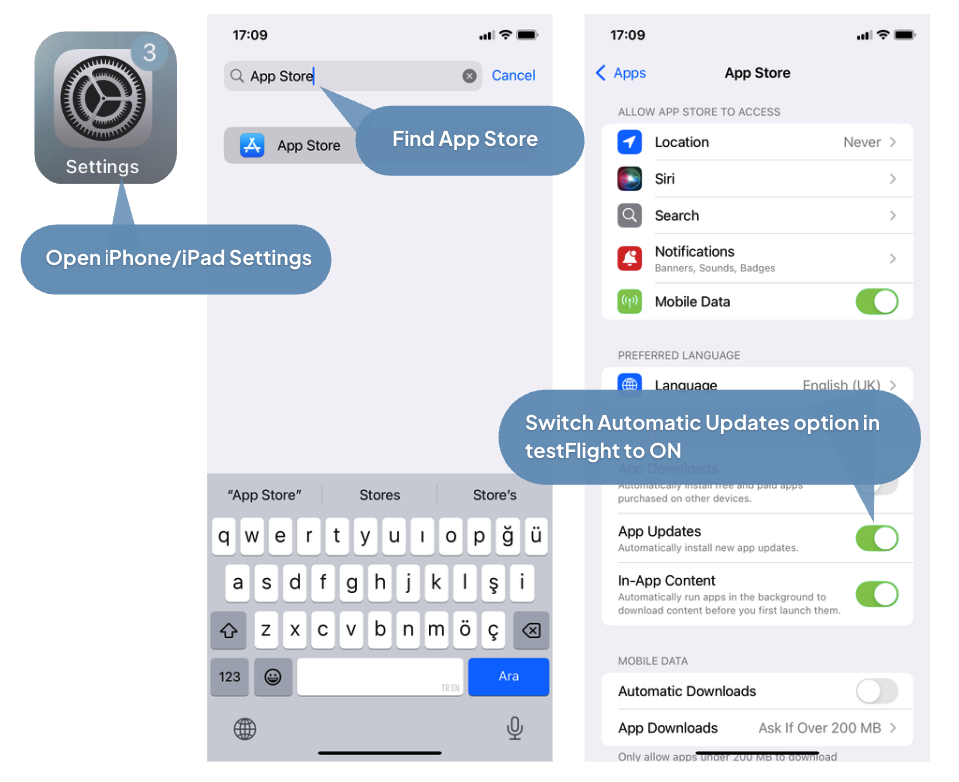
- To ensure you are using the latest version of the Aesthetics360 mobile app, we recommend enabling automatic updates in the App Store. This will allow you to receive the newest features and improvements promptly.
Unfortunately, Apple does not allow per-app automatic update toggles natively. The App Store setting is all-or-nothing — you either enable auto-updates for all apps or none.
Option 1: Enable Auto-Updates
This will automatically update all apps including Aesthetics360. |
|
Option 2: Manually Update Only the Aesthetics360 App
If you prefer not to auto-update all apps:
- Open the App Store.
- Tap the My Account button or your photo at the top of the screen.
- Scroll down to see pending updates and release notes.
- Tap Update next to the Aesthetics360 app to only update that app, or tap Update All.
Read More in How to manually update apps from the App Store
Q: Will automatic updates interrupt my consultations?
A: No. Updates typically download in the background and install when the app is closed. You'll only need to reopen the app after an update installs.
Q: Do I need to update the app manually if I have automatic updates enabled?
A: No. Once enabled, updates download and install automatically. You may see a notification that an update was installed.
Understanding App Updates
What Gets Updated
App updates may include:
✓ New Features
- Enhanced functionality and tools
- New consultation capabilities
- Improved user interface
✓ Performance Improvements
- Faster load times
- Smoother navigation
- Optimized resource usage
✓ Bug Fixes
- Resolved known issues
- Stability improvements
- Error corrections
✓ Security Enhancements
- Protection against vulnerabilities
- Updated encryption protocols
- Improved data security
Update Frequency
- Minor Updates: Released as needed for bug fixes and small improvements
- Major Updates: Released periodically with significant new features
- Security Patches: Released promptly when security issues are identified
Q: How do I know if a new update is available?
A: Check the App Store for available updates. You'll see an "Update" button next to Aesthetics360 if a new version is available.
Q: Can I use an older version of the app?
A: While possible, it's not recommended. Older versions may have security vulnerabilities, bugs, or lack important features. Always use the latest version.
Best Practices
For Automatic Updates
Enable Wi-Fi Only Updates
- Prevents using mobile data for large downloads
- Ensures updates download during off-hours
Keep Sufficient Storage Space
- Maintain at least 1GB of free storage
- Updates may fail without adequate space
Charge Your Device
- Keep device plugged in or well-charged
- Some updates won't install on low battery
Update During Off-Hours
- Schedule updates for evenings or weekends
- Avoid interruptions during clinic hours
For Manual Checks
Check Weekly
- If automatic updates are disabled
- Ensures you don't miss important updates
Review Update Notes
- Read what's new in each version
- Understand new features before they're available
Report Issues
- Report any issues promptly to support
Troubleshooting Update Issues
Update Won't Download
Check Your Internet Connection
- Ensure you're connected to Wi-Fi or have strong cellular signal
- Try switching between Wi-Fi and mobile data
Check Storage Space
- Go to Settings > General > iPhone Storage
- Delete unnecessary files if space is low
Restart Your Device
- Power off completely and restart
- Attempt the update again
Update Won't Install
Restart and Try Again
- Close the app completely
- Restart your device
- Open the App Store and retry
Check for iOS System Updates
- Older iOS versions may prevent app updates
- Update your iOS if available in Settings > General > Software Update
Uninstall and Reinstall
- As a last resort, remove and reinstall the app
- Your data syncs from the cloud after reinstalling
Q: Will I lose my data when updating the app?
A: No. All your consultation data is securely stored in the cloud. Updates don't affect your saved data.
Q: What if the update causes issues with the app?
A: Contact Aesthetics360 support immediately at support@aesthetics360.com. Include your app version number and a description of the issue.
Summary
Keeping your Aesthetics360 mobile app updated ensures optimal performance, security, and access to the latest features. Here's what to remember:
✓ Check your app version from the menu at the bottom of the screen
✓ Enable automatic updates in your device's App Store settings
✓ Use Wi-Fi only updates to avoid using mobile data
✓ Maintain adequate storage space for smooth update installation
✓ Update during off-hours to avoid interruptions during clinic operations
✓ Check weekly for updates if automatic updates are disabled
✓ Contact support if you experience any issues after updating
Need Help?
If you have questions or need assistance with account security:
- Use our AI chatbot - Available in the A360 Help Center, mobile app, or web app (this feature to be available soon)
- Email support - support@aesthetics360.com
- Visit our website - aesthetics360.com
Our support team is here to help you keep your account secure