
Account security: Passwords, reset, biometrics, switching users
Keeping your Aesthetics360 account secure is essential for protecting patient information and maintaining smooth clinic operations. This guide covers everything you need to know about accessing your account securely and managing your login preferences
How do I sign in on the web app?
First Time Sign In
When you first access Aesthetics360 on a new browser or device:
- Go to app.aesthetics360.com
- Enter your email address
- Enter your password
- Optional: Check the "Remember Me" box (see below for when to use this What does the Remember Me option do)
- Click "Sign In"

Tip: Use the eye icon to review your password before submitting to make sure it's entered correctly.
Related questions:
What does the Remember Me option do
What does the Remember Me option do?
The Remember Me checkbox saves you time on devices you use regularly.
What it does:
- Saves your email address on this specific device/browser
- Next time you visit, you'll only need to enter your password
- Remembers you until you manually remove your account from the list

When to use it:
- On your personal work computer
- On devices in secure clinic areas
- When you're the primary user of that device
When NOT to use it:
- On shared public computers
- On devices used by multiple staff members
- In unsecured locations
Signing In on a Device You've Used Before
After your first successful login with "Remember Me" enabled, you'll see the Recently Logged In screen:
- You'll see a list of accounts saved for quick access on this device
- Click your account name
- Enter your password (you won't need to type your email again)
- Click "Sign In"

To remove an account from quick access:
-
Click the "X" button next to the email address
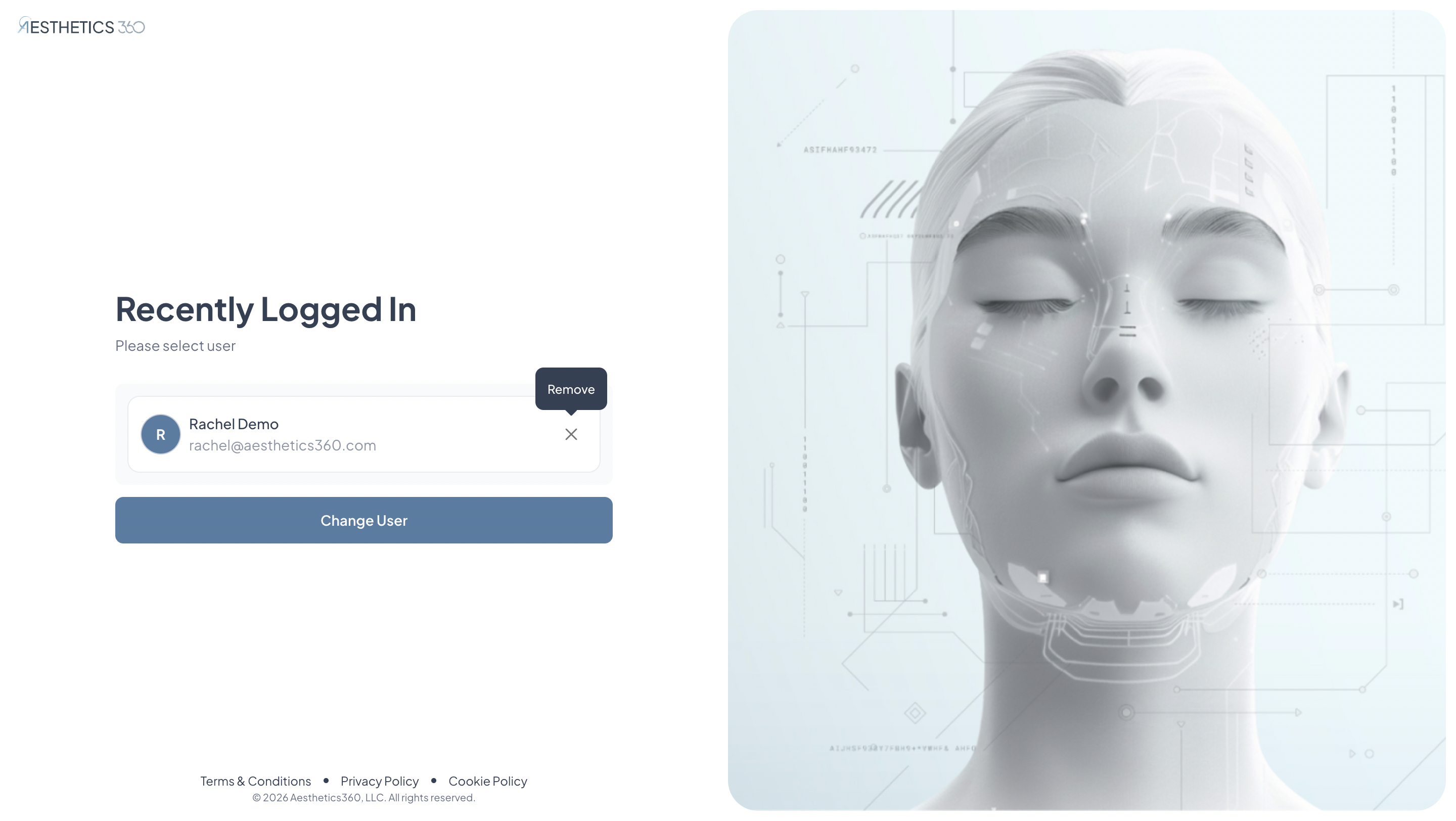
Click X (Remove) Button -
A confirmation dialog will appear asking "Are you sure you want to remove [email] from Recently Logged In list?"
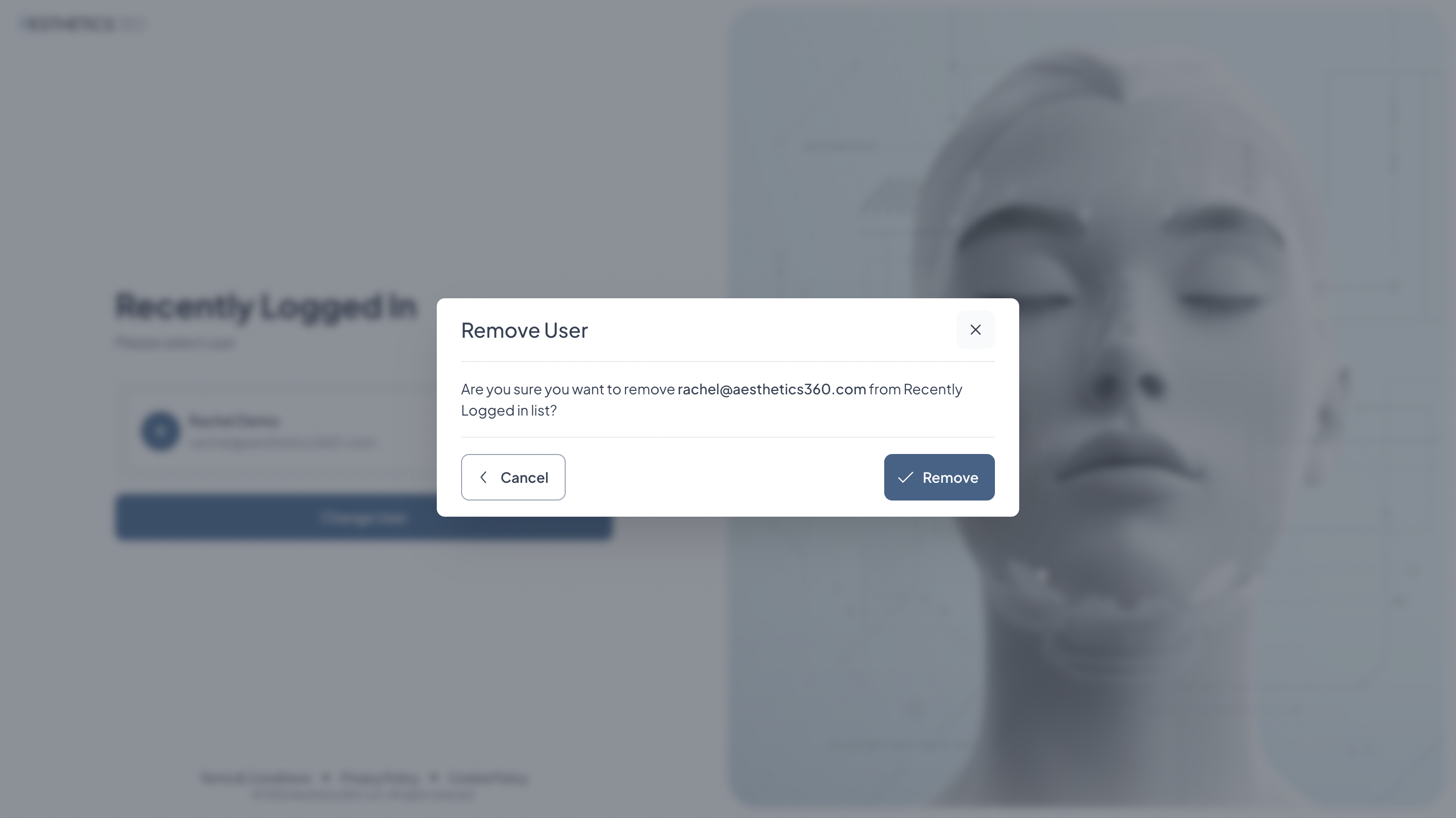
Confirmation - Click "Remove" to confirm (or "Cancel" to keep the account in the list)

Note: This only removes the account from quick access on this device—it doesn't delete the actual account.
How do I sign in on the mobile app?
First Time Sign In
When you first open the Aesthetics360 mobile app:
- Enter the email address you created during account setup
- Enter your password
- The app will verify your credentials before granting access
Tip: Use the eye icon to review your password and ensure accuracy before submission.
Signing In After Your First Login
After your first successful login, the app automatically saves your account for quick access:
- Your email will already be displayed (the last account that signed in)
- Simply enter your password
- Tap "Sign In"
The app automatically remembers the last user who logged in, so you don't need to enter your email address each time.
Want even quicker access?
After logging in, go to Settings and enable Face ID or Touch ID for biometric login (see below How do I set up biometric authentication Face ID/Touch ID).
Related questions:
How do I switch users on a single device
What should I do if I forgot my password?
If you can't remember your password, you can reset it from either the web app or mobile app.
Reset Password on Mobile App:
- On the Sign In screen, tap "Forgot password?"
- Enter your email address
- Tap "Send Reset Link"
- You'll see confirmation: "Password Reset Requested"
- Check your email for the reset instructions
- Open the email and tap "Reset Password"
- Create your new password following the password requirements:
- Between 8 and 16 characters long
- At least one uppercase letter (A, B, C...)
- At least one lowercase letter (a, b, c...)
- At least one number (0-9)
- At least one special character (!@#$%^&*)
- No spaces at the start or end
- Password and confirmation must match exactly
- The app will show which requirements you've met as you type
- Tap "Reset Password" to save
- Log in with your new password
Reset Password on Web App:
- On the Sign In page, click "Forgot Password?"
- Enter your email address
- Click "Send Reset Link"
- You'll see confirmation: "Password Reset Requested"
- Check your email for "Reset your Aesthetics360 password"
- Click the "Reset Password" button in the email
- Create your new password following the password requirements:
- Between 8 and 16 characters long
- At least one uppercase letter (A, B, C...)
- At least one lowercase letter (a, b, c...)
- At least one number (0-9)
- At least one special character (!@#$%^&*)
- No spaces at the start or end
- Password and confirmation must match exactly
- The app will show which requirements you've met as you type
- Click "Reset Password" to save
- Log in with your new password
The password reset link is secure and will expire after a certain time for your protection.
How to create a secure password?
Follow these best practices to create a strong, memorable password:
Do's:
- Mix uppercase and lowercase letters throughout
- Include numbers in unexpected places (not just at the end)
- Use special characters like !@#$%^&*
- Consider using a passphrase with numbers and symbols
- Make it unique to Aesthetics360
Don'ts:
- Don't use common words or predictable patterns
- Avoid personal information (birthdays, names, addresses)
- Don't reuse passwords from other accounts
- Avoid simple substitutions (like "P@ssw0rd")
Example of a strong password: Med!Spa2026$Secure
Related questions:
How do I change my password from mobile settings?
To update your password from the mobile app:
- Sign in to the app
- Tap the gear icon in the top left corner to open Settings
- Select "Change Password"
- Enter your current password
- Enter your new password
- Re-enter your new password in "Confirm Password"
- Make sure your new password meets all requirements:
- 8-16 characters
- At least 1 uppercase letter
- At least 1 lowercase letter
- At least 1 number
- At least 1 special character (!@#$%^&*)
- No spaces at start or end
- Different from current password
- New password and confirmation must match
- The app will show which requirements are met as you type
- Tap "Done" to save your new password
Your new password takes effect immediately, and you'll use it for all future logins.
Related questions:
How do I update my password on the web app?
To change your password from the web application:
- Sign in to your account at app.aesthetics360.com
- Click the three-dot menu (...) next to your email address
- Select "My Account"
- Click the "Security" tab
- Enter your current password for verification
- Enter your new password
- Confirm your new password by typing it again
- Ensure all password requirements are met (shown on screen)
- Click "Update Password" to save
- You'll see a success message confirming the update
Remember your new password — you'll need it the next time you log in
Related questions:
How do I set up biometric authentication (Face ID/Touch ID)?
Biometric login makes accessing your account faster and more secure. This feature is available on the mobile app only.
Setting Up Face ID or Touch ID:
- Sign in to the mobile app with your email and password
- Tap the settings icon in the top left corner
- Find and tap "Use Face ID" or "Use Touch ID" (depending on your device)
- Toggle the switch to ON
- Follow your device's prompts to confirm
Using Biometric Login:
Once enabled, you'll see a Face ID/Touch ID icon on the sign-in screen. Simply:
- Tap the biometric icon
- Authenticate using your face or fingerprint
- You're in!
Note: Biometric login is device-specific. If you use multiple devices, you'll need to enable it on each one separately.
How do I enable or disable biometric login?
To Enable:
Follow the steps in "How do I set up biometric authentication" above.
To Disable:
- Open the mobile app
- Tap the settings icon in the top left corner
- Find "Use Face ID" or "Use Touch ID"
- Toggle the switch to OFF
After disabling, you'll need to enter your password each time you log in.
How do I switch users on the web app?
If multiple staff members use the same computer, you can easily switch between accounts.
From the Recently Logged In Screen:
- You'll see a list of accounts that have been used on this device
- Click on your account name
- Enter your password
- Click "Sign In"
To Switch to a Different Account:
- On the Recently Logged In screen, click "Change User"
- You'll be brought to the sign-in screen
- Enter a different email address and password
- Click "Sign In"
How to Remove an Account from the List:
- Click the "X" button next to the email address
- This removes it from quick access on this device only—it doesn't delete the actual account
Related questions:
How do I switch users on a single mobile device?
On the mobile app, multiple users can access their accounts from one device. Each successful login automatically adds that user to the device's list.
Switch Between Recent Users:
- On the Sign In screen, tap the "Change User" icon in the top right corner
- You'll see a list of accounts that have recently logged in on this device
- Tap the account you want to use
- Enter the password for that account
- Sign in
Add a New User to This Device:
- On the Sign In screen, tap the "Add User" icon in the top right corner
- Enter the email and password for the new account
- Complete the sign-in process
Remove an Account from the List:
- Tap the "X" next to the account name
- This removes it from this device's quick access list only
- The account itself is not affected
This feature is helpful for practices where staff share tablets or mobile devices.
Related questions:
Summary
Maintaining strong account security in Aesthetics360 helps protect sensitive patient data and ensures smooth clinic operations. Here's what to remember:
✓ Use Remember Me only on secure, personal work devices
✓ Quick access is automatic—your email is saved after your first login
✓ Use password reset if you forget your credentials
✓ Enable biometric login for faster, more secure access on mobile
✓ Switch users easily when multiple staff share devices
✓ Update passwords regularly from your profile settings
Need Help?
If you have questions or need assistance with account security:
- Use our AI chatbot - Available in the knowledge base, mobile app, or web app
- Email support - support@aesthetics360.com
- Visit our website - aesthetics360.com
Our support team is here to help you keep your account secure